

When Uptime.com raises a new alert, open a ClickUp task and notify the team in Slack
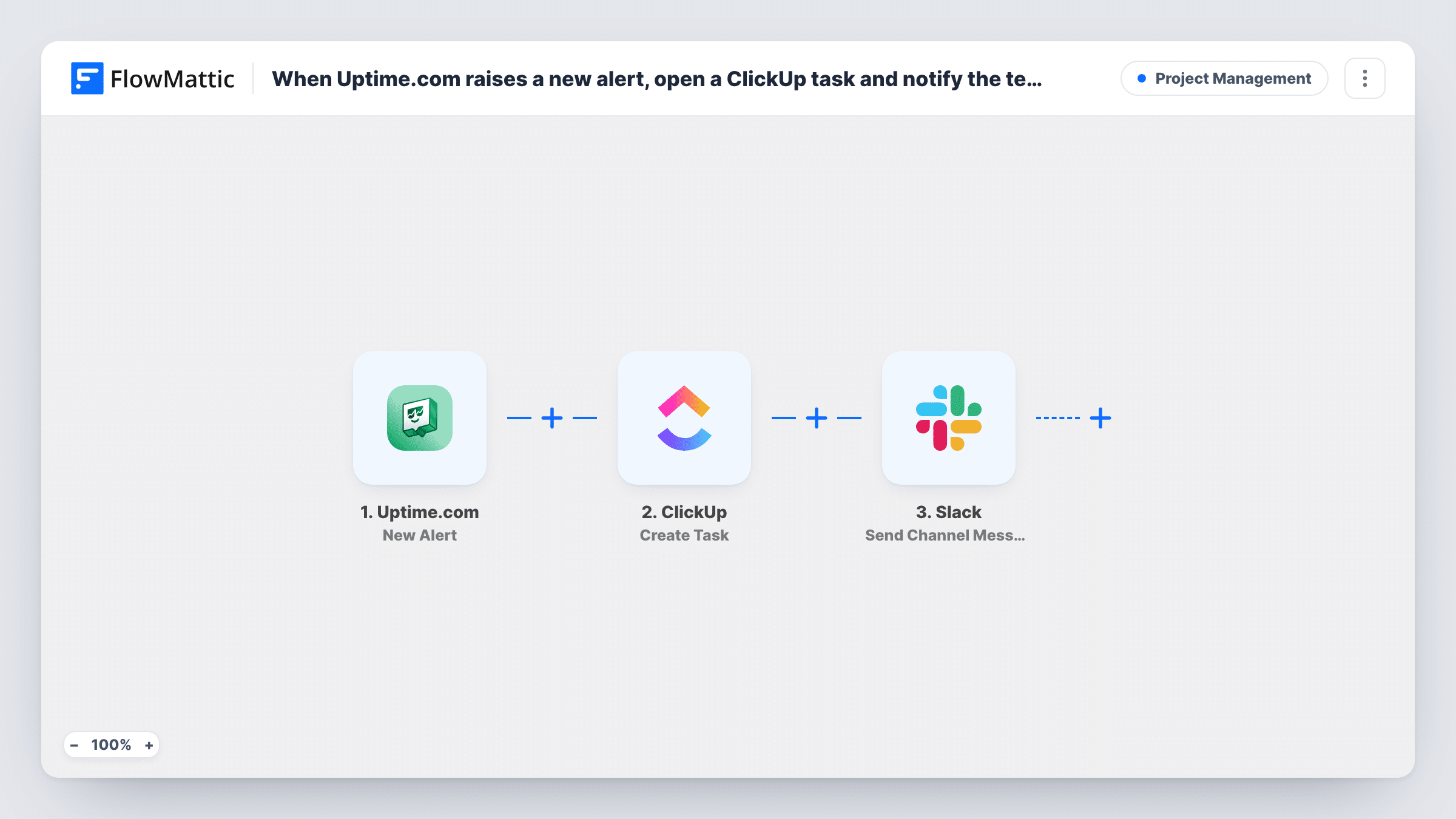
When Uptime.com raises a new alert, this workflow creates a task in ClickUp for the incident and then posts a message to a Slack channel, so the problem is recorded and your team hears about it.
 Uptime.com
 ClickUp
 Slack
Slack3 steps Setup ~5 min Used on 2.5k sites Productivity Free to import
What this workflow does
A monitoring alert is only useful if someone acts on it. When alerts arrive by email, they get missed, and there is often no record of who looked into what. This workflow turns each Uptime.com alert into work your team can track and a message they will see.
The Uptime.com trigger fires when Uptime.com raises a new alert on your account. FlowMattic passes the alert data to ClickUp, which creates a task from the alert details you map into it. The workflow then sends a message to a Slack channel. You can include the alert details and data from the new ClickUp task in that message.
The steps run in order for every alert, with no conditions in between. Task History logs each run, so you can see which alerts produced a task and a message.
On-call channel for a web agency
An agency monitors client sites in Uptime.com. Each alert creates a ClickUp task in the support list and posts to the on-call Slack channel, so whoever is on duty picks it up.
Incident record for a SaaS team
Every alert becomes a ClickUp task that the engineer closes with notes, giving the team a list of past incidents to review later.
Store owner without a dedicated ops team
A shop owner and a freelance developer share a Slack workspace. Alerts appear in Slack straight away, and the ClickUp task tells the developer what to check.
How this workflow runs
What happens at each step once the workflow is on, and what you need before you import it.
 Uptime.com New Alert
Runs when Uptime.com raises a new alert on your account. The alert data is passed to the ClickUp and Slack steps for mapping. Connect your Uptime.com account on import.
- ClickUp Create Task
Creates a task in ClickUp from the alert. Map the alert details into the task and connect your ClickUp account. Run a test to confirm the task lands where your team works.
- Slack Send Channel Message
Sends a message to a Slack channel about the alert. Write the message with the alert data and, if you like, details from the ClickUp task created in the previous step. You link the Slack workspace that holds the channel when you import.
What you need
- FlowMatticCore
- Uptime.com AccountAccount
- ClickUp AccountAccount
- Slack AccountAccount
After importing, map your own data. To keep the template universal, not every step is pre-filled. Open each step in the builder and connect your accounts and fields (channels, lists, sheets, recipients) before you switch the workflow on.
Make it yours
Changes worth making after you import it.
- Add a Filter after the trigger if some alerts should not create work, for example continuing only for the checks that cover your most important sites.
- Look at the data the ClickUp step returns in a test run. If it includes a link to the task, add it to the Slack message so people can open the task from the channel.
- Trigger a test alert in Uptime.com after import. FlowMattic captures the alert fields, and you can map them in both later steps before turning the workflow on.
Questions about this workflow
Does every Uptime.com alert create a ClickUp task?
Yes, as imported. Nothing checks the alert before the ClickUp step runs. Add a Filter after the trigger if you only want tasks for certain alerts.
Will the Slack message still post if ClickUp returns an error?
Yes. FlowMattic moves on to the Slack step after an app returns an error, though any ClickUp data you mapped into the message will be missing. Task History shows the error on the ClickUp step.
Does the workflow close the ClickUp task when the site recovers?
No. It only reacts to new alerts. Closing the task is up to your team, or you can build a separate workflow for that.
Can I send the Uptime.com alert to more than one Slack channel?
Yes. Add another Slack Send Channel Message step after this one and pick a different channel in it.
More Project Management workflows
Other ready-to-import templates from the same category.


Import this workflow into your WordPress site
Download the JSON, import it from the Workflows screen and connect your accounts. Every run stays on your server, with no per-task fees.
30-day money-back guarantee Unlimited workflows and runs Self-hosted