

Create a FluentBoards card for every new support ticket
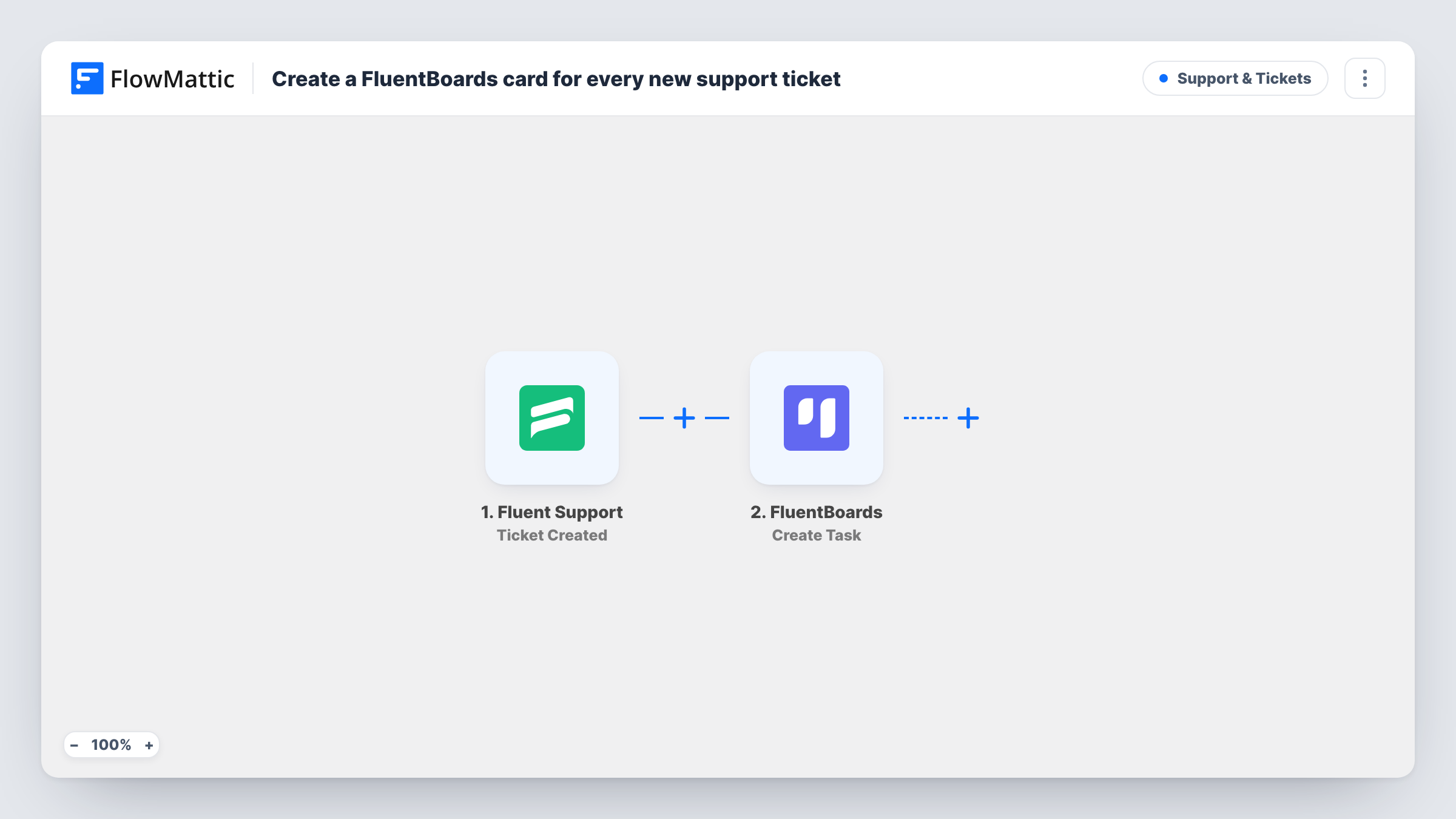
Each new Fluent Support ticket creates a FluentBoards task titled with the ticket number and subject, so your support work shows up on a board you can plan and track.
 Fluent Support
 FluentBoards
2 steps Setup ~5 min Used on 2.9k sites Support Free to import
What this workflow does
A helpdesk inbox shows tickets as a list, which makes it hard to see how much work is waiting or who is on what. Many teams already plan in FluentBoards. This workflow puts each new support ticket there as a task, so support work sits next to everything else your team tracks.
When a customer opens a ticket in Fluent Support, the trigger passes its details to FlowMattic. The FluentBoards step then creates a task whose title reads "Ticket #" followed by the ticket ID, a colon and the ticket subject. The number in the title lets anyone on the board find the matching ticket in Fluent Support.
Fluent Support and FluentBoards are both WordPress plugins, so the ticket and the task stay on your own site. The workflow only creates the task. Replies, status changes and closed tickets are not synced to the board, so move or close the task yourself when the ticket is solved.
Support board for a small product team
Developers who don't watch the helpdesk see each new ticket as a FluentBoards task and can pick up the ones that need a code fix.
Agency handling client support
Tickets from client sites appear as tasks on the agency's board, next to project work, so the weekly planning meeting covers both.
Spotting support load at a glance
A column of new ticket tasks shows how much support work arrived this week without anyone opening the helpdesk.
How this workflow runs
What happens at each step once the workflow is on, and what you need before you import it.
 Fluent Support Ticket Created
Starts the workflow each time a customer or agent opens a Fluent Support ticket. The ticket ID, subject and other ticket details become available to map in the next step.
- FluentBoards Create Task
Creates a FluentBoards task titled "Ticket #" plus the ticket ID and subject. Run a test after import to confirm which board and stage receive the task.
What you need
- FlowMatticCore
- Fluent Support PluginPlugin
- FluentBoards PluginPlugin
After importing, map your own data. To keep the template universal, not every step is pre-filled. Open each step in the builder and connect your accounts and fields (channels, lists, sheets, recipients) before you switch the workflow on.
Make it yours
Changes worth making after you import it.
- Add a Filter after the trigger so only certain tickets become tasks, for example tickets whose priority is high or that belong to one product.
- Map the customer's message or name into the task description, if the FluentBoards step offers one, so the task explains the issue without opening the ticket.
- Use a Router with one route per product and a FluentBoards step in each, so tickets for different products land on different boards. Each condition should match a distinct product value.
Questions about this workflow
Does closing the Fluent Support ticket close the FluentBoards task?
No. The workflow runs only when a ticket is created. Later changes to the ticket are not sent to FluentBoards, so update the task by hand.
Are tickets opened before import added to FluentBoards?
No. Only tickets created after you turn the workflow on produce tasks. Existing tickets stay in Fluent Support alone.
Do I need any outside accounts for this FluentBoards workflow?
No. Fluent Support and FluentBoards run as plugins on your WordPress site, alongside FlowMattic, so no third-party account is needed.
More Support & Tickets workflows
Other ready-to-import templates from the same category.




Import this workflow into your WordPress site
Download the JSON, import it from the Workflows screen and connect your accounts. Every run stays on your server, with no per-task fees.
30-day money-back guarantee Unlimited workflows and runs Self-hosted