

Add Zoom registrants to FluentCRM and email them a confirmation
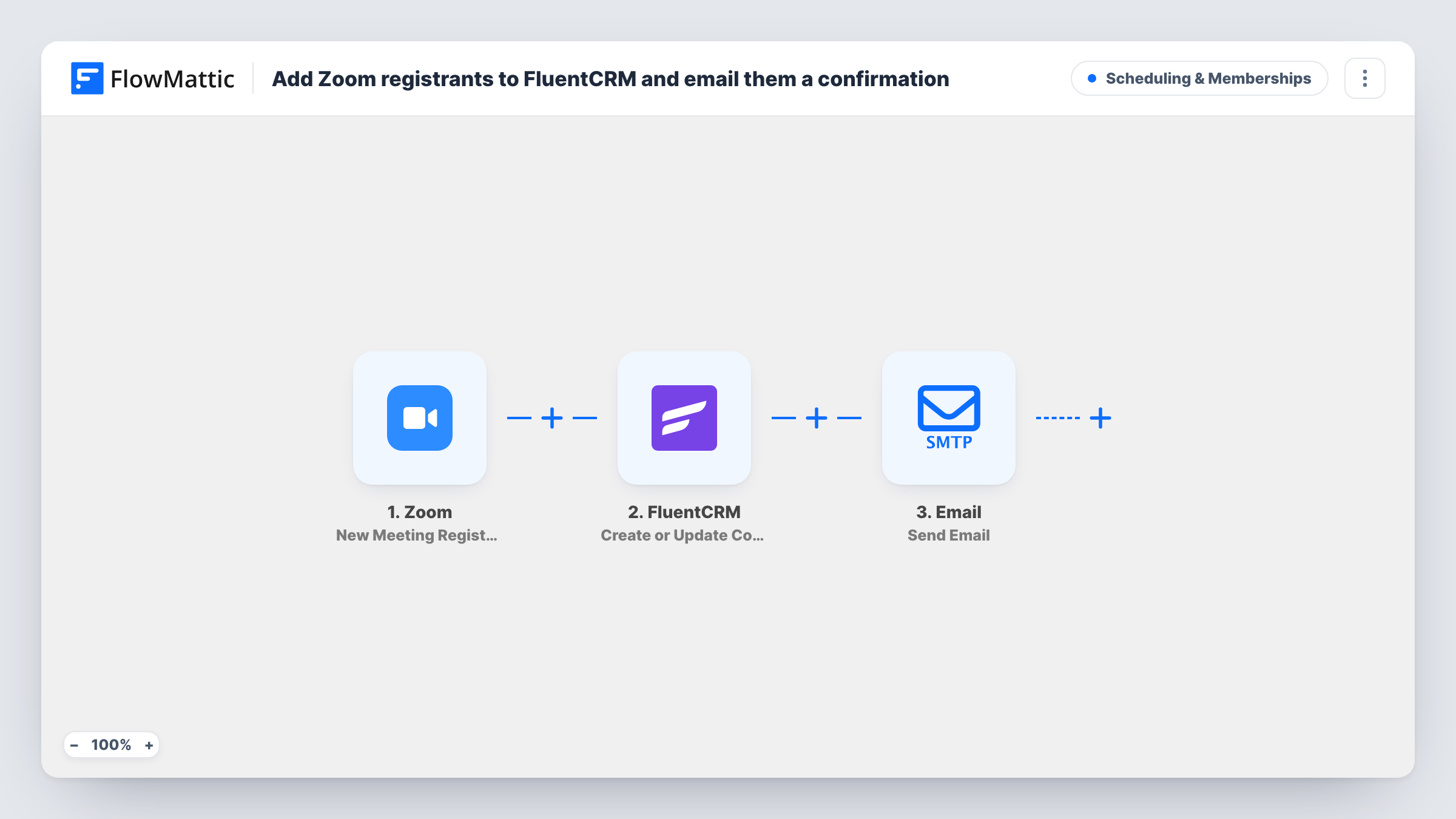
When someone registers for a Zoom meeting, this workflow adds or updates them as a FluentCRM contact and emails them a confirmation with the meeting topic and join link.
 Zoom
Zoom
 FluentCRM
 Email
Email3 steps Setup ~5 min Used on 3.3k sites Community Free to import
What this workflow does
People who register for your Zoom sessions are interested in what you do, but their details stay in Zoom unless you export them. This workflow brings each registrant into FluentCRM as they sign up, so you can follow up after the session, and sends them a confirmation of your own.
The Zoom trigger fires on each new meeting registrant. FlowMattic passes the registrant's email and name to FluentCRM, which creates a contact or updates the one that already has that email. Then the Email step sends the registrant a message confirming they are registered, with the meeting topic in the subject and the join link in the body.
The template puts the registrant's full name into the FluentCRM first name and leaves last name empty. If you greet contacts by first name in FluentCRM emails, adjust that mapping after import.
The trigger depends on registration being turned on for the Zoom meeting. Meetings people join without registering don't run this workflow.
Monthly webinar series
Each registrant joins FluentCRM, so after the session you can send the recording or an offer to everyone who signed up, attended or not.
Open office hours
Customers register for a live Q and A. They land in FluentCRM next to your existing customers, with their record updated if they already exist.
Workshops promoted on social media
People register from a link you shared. Your own confirmation email repeats the join link, and the CRM keeps the list for your next workshop.
How this workflow runs
What happens at each step once the workflow is on, and what you need before you import it.
 Zoom New Meeting Registrant
Fires when someone registers for one of your Zoom meetings. The registrant's name and email, the meeting topic and the join URL are passed on.
- FluentCRM Create or Update Contact
Creates a FluentCRM contact from the registrant's email, or updates the existing contact. The full registrant name is mapped to first name and last name is left empty.
 Email Send Email
Emails the registrant to confirm they are registered, with the meeting topic in the subject and the Zoom join link in the message.
What you need
- FlowMatticCore
- Zoom AccountAccount
- FluentCRM PluginPlugin
After importing, map your own data. To keep the template universal, not every step is pre-filled. Open each step in the builder and connect your accounts and fields (channels, lists, sheets, recipients) before you switch the workflow on.
Make it yours
Changes worth making after you import it.
- Rewrite the confirmation body to include the meeting date and time, since the template only names the topic and gives the link.
- Add a Filter on the meeting topic after the trigger if only some of your Zoom meetings should add people to FluentCRM.
- Register for a test meeting yourself after import, then check the contact in FluentCRM and the confirmation email you receive.
Questions about this workflow
Does Zoom also send its own registration confirmation?
This workflow doesn't change Zoom's settings. If Zoom already emails registrants, they will receive both, so turn one off if you want a single message.
What if the Zoom registrant is already a FluentCRM contact?
The step uses Create or Update Contact, so the existing contact with that email is updated rather than duplicated.
Does this work for Zoom meetings without registration?
No. The trigger fires on new registrants, so the meeting needs registration turned on in Zoom.
Why is the FluentCRM last name empty?
The template maps the full registrant name to first name and leaves last name blank. Change the mapping if Zoom gives you separate name fields in a test run.
More Scheduling & Memberships workflows
Other ready-to-import templates from the same category.






Import this workflow into your WordPress site
Download the JSON, import it from the Workflows screen and connect your accounts. Every run stays on your server, with no per-task fees.
30-day money-back guarantee Unlimited workflows and runs Self-hosted