

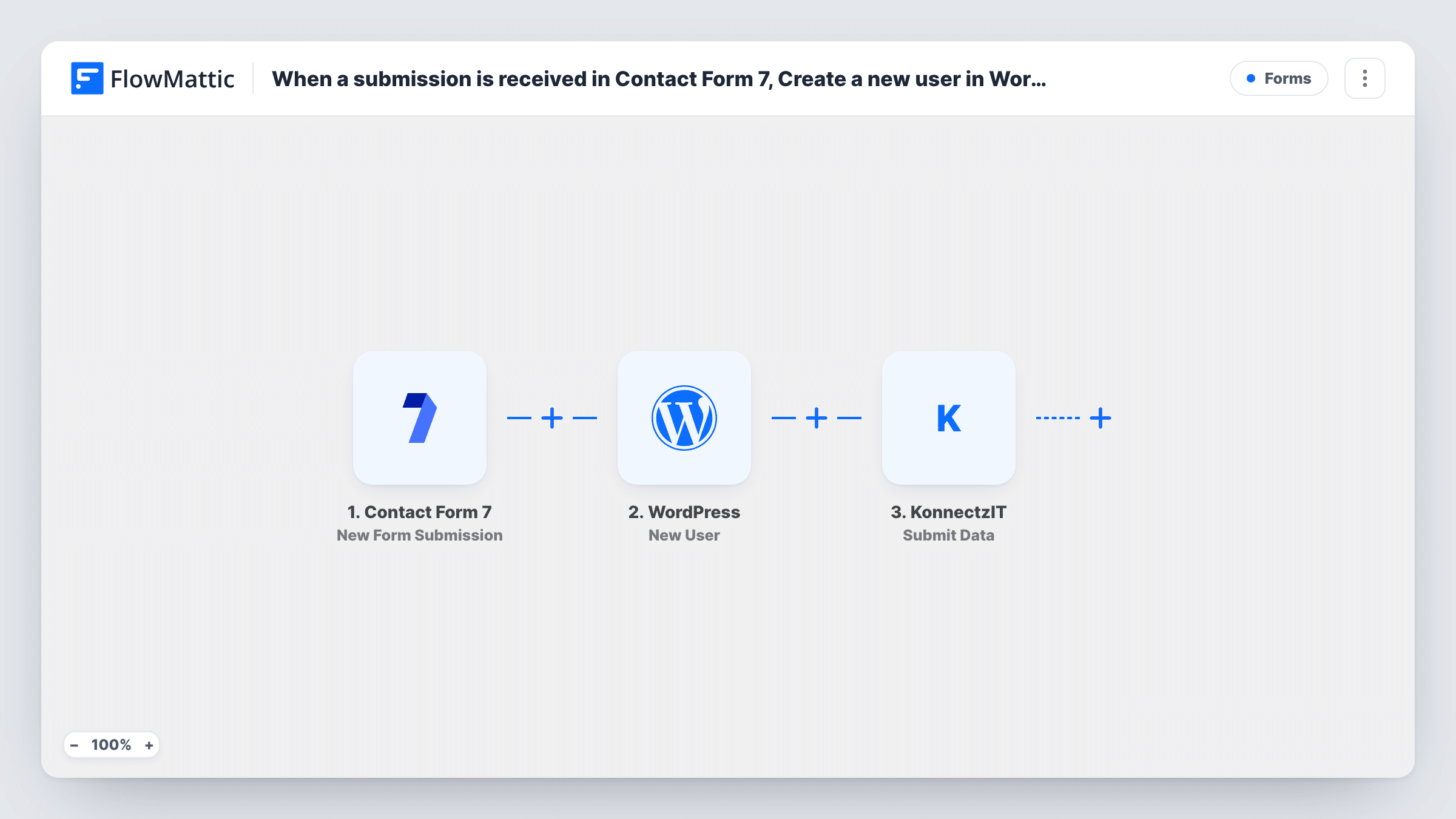
When a submission is received in Contact Form 7, Create a new user in WordPress and send data with form submission and user id to KonnectzIT
A Contact Form 7 submission creates a new WordPress user, then FlowMattic submits the form data together with the new user’s ID to KonnectzIT, so your KonnectzIT automations can carry on from there.
 Contact Form 7
 WordPress
 KonnectzIT
3 steps Setup ~5 min Used on 871 sites Free to import
What this workflow does
Some sites turn a form into a sign-up: a visitor fills in Contact Form 7, and you want them to have a WordPress account. Often other tools need to know about that person too, and those tools are already connected in KonnectzIT. This workflow handles the account and the hand-off in one run.
The Contact Form 7 trigger fires on each new submission. The WordPress step creates a user from the fields you map, typically a username and the email address from the form. FlowMattic then submits data to KonnectzIT, combining the form answers with the ID of the user WordPress just created.
Sending the user ID lets whatever runs in KonnectzIT refer back to the exact WordPress account later. Every submission goes through both steps. Task History shows each run, including the user ID WordPress returned and the data that went to KonnectzIT.
Registration form for a course or club
Members sign up through a Contact Form 7 form. Each one gets a WordPress login, and KonnectzIT passes their details and user ID on to your other apps.
Client portal sign-ups
A request form creates the client's WordPress account for your portal, and a KonnectzIT flow adds them to the tools your team uses to onboard clients.
Linking records across systems
Your KonnectzIT flow saves the WordPress user ID next to the contact in another app, so later updates can find the right account on your site.
How this workflow runs
What happens at each step once the workflow is on, and what you need before you import it.
 Contact Form 7 New Form Submission
Runs on every new Contact Form 7 submission on your site. All of the form's fields are available to the WordPress and KonnectzIT steps.
- WordPress New User
Creates a new WordPress user from the form data. Map the submitted fields into the new account, then check with a test submission that the user is created with the details you expect.
- KonnectzIT Submit Data
Submits data to KonnectzIT, including the form answers and the user ID from the previous step. Map the values you want KonnectzIT to receive, then test to confirm they arrive.
What you need
- FlowMatticCore
- Contact Form 7 PluginPlugin
- KonnectzIT AccountAccount
After importing, map your own data. To keep the template universal, not every step is pre-filled. Open each step in the builder and connect your accounts and fields (channels, lists, sheets, recipients) before you switch the workflow on.
Make it yours
Changes worth making after you import it.
- Make the email field required in the form with email* so the WordPress step always gets an address for the new account.
- Add a Filter between the Contact Form 7 trigger and the WordPress step that continues only when a consent or sign-up checkbox is ticked, so plain enquiries through the same form don't create accounts.
- Send one test submission after import so FlowMattic captures the form fields and the WordPress user ID before you map the KonnectzIT step.
Questions about this workflow
What if someone submits the Contact Form 7 form with an email that already has a WordPress account?
WordPress won't add another account for an address it already has. The step returns the ID of the existing user instead, and that ID is what goes to KonnectzIT with the form answers. Task History shows which ID it was.
Do I need a KonnectzIT flow ready to receive the data?
Yes. This workflow only submits the data. A flow in your KonnectzIT account has to receive it and decide what happens next.
Why send the WordPress user ID to KonnectzIT?
It gives your other apps a direct reference to the new account, so later automations can update or look up that exact WordPress user.
More Forms workflows
Other ready-to-import templates from the same category.






Import this workflow into your WordPress site
Download the JSON, import it from the Workflows screen and connect your accounts. Every run stays on your server, with no per-task fees.
30-day money-back guarantee Unlimited workflows and runs Self-hosted