

When a new ticket is created in Freshdesk, send the ticket details to user's WhatsApp using WhatsApp Cloud API
When a new ticket is created in Freshdesk, FlowMattic sends the ticket details as a WhatsApp text message through WhatsApp Cloud API. WhatsApp holds back free-form text unless the customer wrote to your number within the past day.
 Freshdesk
 WhatsApp Cloud API
2 steps Setup ~5 min Used on 1.5k sites Free to import
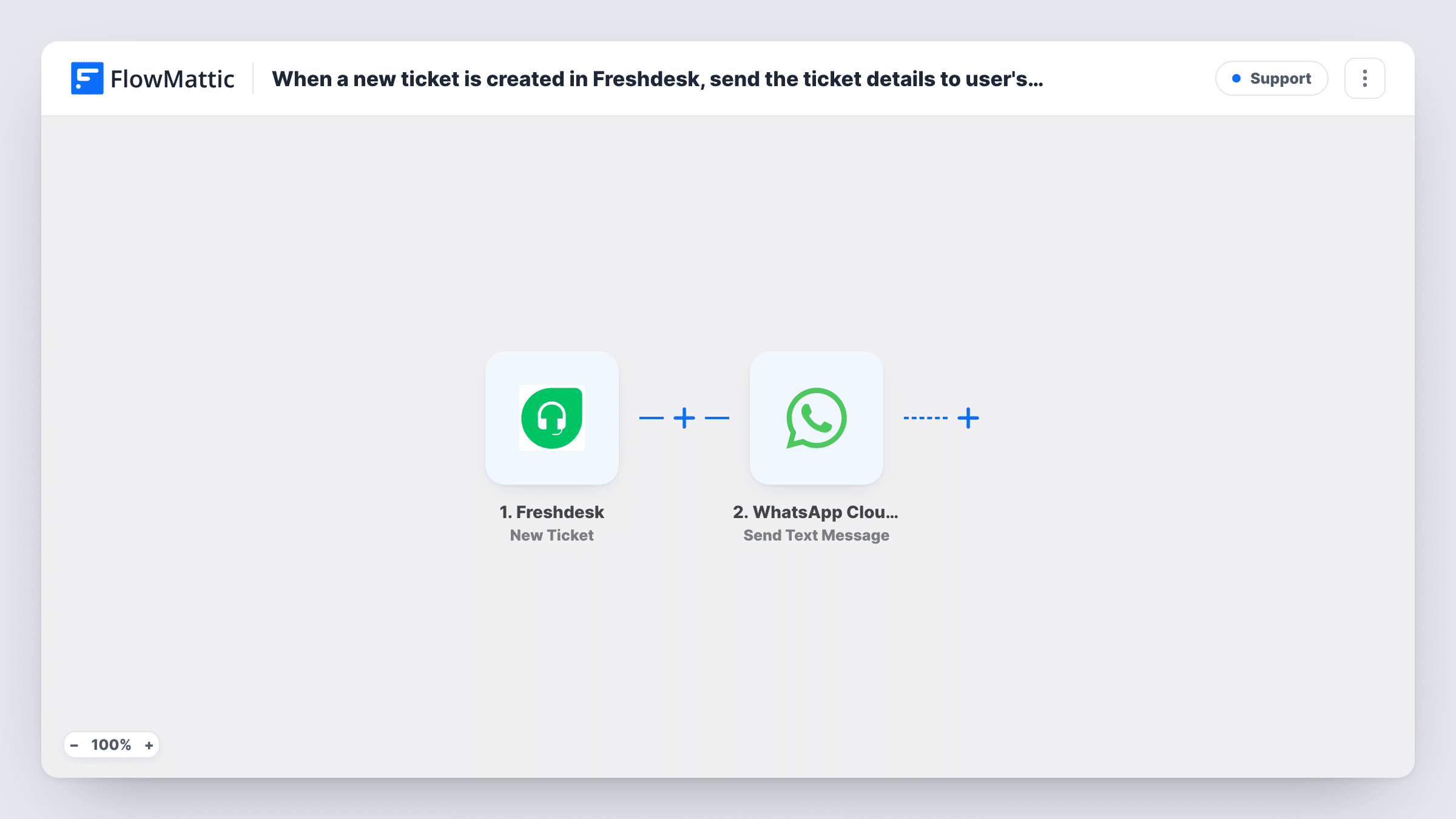
What this workflow does
Customers who open a support ticket want to know it arrived and what it says. A WhatsApp message with the ticket details is easy for them to find later. This workflow sends one for each new Freshdesk ticket.
The Freshdesk trigger, New Ticket, fires when a ticket is created. The ticket's subject, description and other data become values you can map. The WhatsApp Cloud API step then sends a text message from your business number to the phone number you map, with the ticket details you place in the text.
There is a catch on the WhatsApp side. A plain text message only gets through if the customer sent your business number a message in the 24 hours before it. A customer who opened a ticket by email or web form usually hasn't, so the message often won't reach them. For those customers, swap the step for Send Template Message and use a template Meta has approved. You also need the customer's phone number in the ticket data; a test ticket shows whether Freshdesk includes it. Each send, and the reply from Meta, is listed in Task History.
Support desk that also chats on WhatsApp
Customers who first message your WhatsApp number and then get a Freshdesk ticket receive the ticket details in the same chat.
Ticket confirmation for phone-first customers
With the step switched to an approved template, customers who prefer their phone to email get a WhatsApp note with their ticket subject.
Field service requests
A service team logs requests as Freshdesk tickets, and the customer receives the request details on WhatsApp for reference.
How this workflow runs
What happens at each step once the workflow is on, and what you need before you import it.
 Freshdesk New Ticket
Fires when a new ticket is created in Freshdesk. The ticket's subject, description, requester details and other data are passed on for mapping in the WhatsApp step.
- WhatsApp Cloud API Send Text Message
Sends the ticket details as a plain WhatsApp text to the customer number you map. Compose the text from ticket fields. It only reaches people who wrote to your number in the last 24 hours.
What you need
- FlowMatticCore
- Freshdesk AccountAccount
- WhatsApp Cloud API AccountAccount
After importing, map your own data. To keep the template universal, not every step is pre-filled. Open each step in the builder and connect your accounts and fields (channels, lists, sheets, recipients) before you switch the workflow on.
Make it yours
Changes worth making after you import it.
- Switch the step to WhatsApp Cloud API's Send Template Message with an approved template, so customers who never messaged your number can still receive the ticket details.
- Add a Filter after the trigger that continues only when the ticket has a phone number, so tickets without one don't produce failed sends.
- Create a test ticket in Freshdesk after import and check which phone value it carries, then map it with the country code WhatsApp expects.
Questions about this workflow
Why might a customer not receive the Freshdesk ticket on WhatsApp?
Plain text is held back unless the customer messaged your WhatsApp business number during the previous 24 hours. Most ticket requesters haven't, so use Send Template Message for them.
Where does the phone number come from?
From the Freshdesk ticket data, if it includes the requester's phone. Create a test ticket to check, and map that value as the recipient.
Does this reply on the Freshdesk ticket?
No. The message goes out on WhatsApp only. Nothing is added to the ticket in Freshdesk.
What do I connect for the WhatsApp side of this Freshdesk workflow?
A WhatsApp Cloud API account, meaning a WhatsApp business number set up through Meta. You connect it on import, and every message is sent from that number.
More Support workflows
Other ready-to-import templates from the same category.






Import this workflow into your WordPress site
Download the JSON, import it from the Workflows screen and connect your accounts. Every run stays on your server, with no per-task fees.
30-day money-back guarantee Unlimited workflows and runs Self-hosted