

When order issue reported in WooCommerce, create ticket in Zoho Desk and add order details
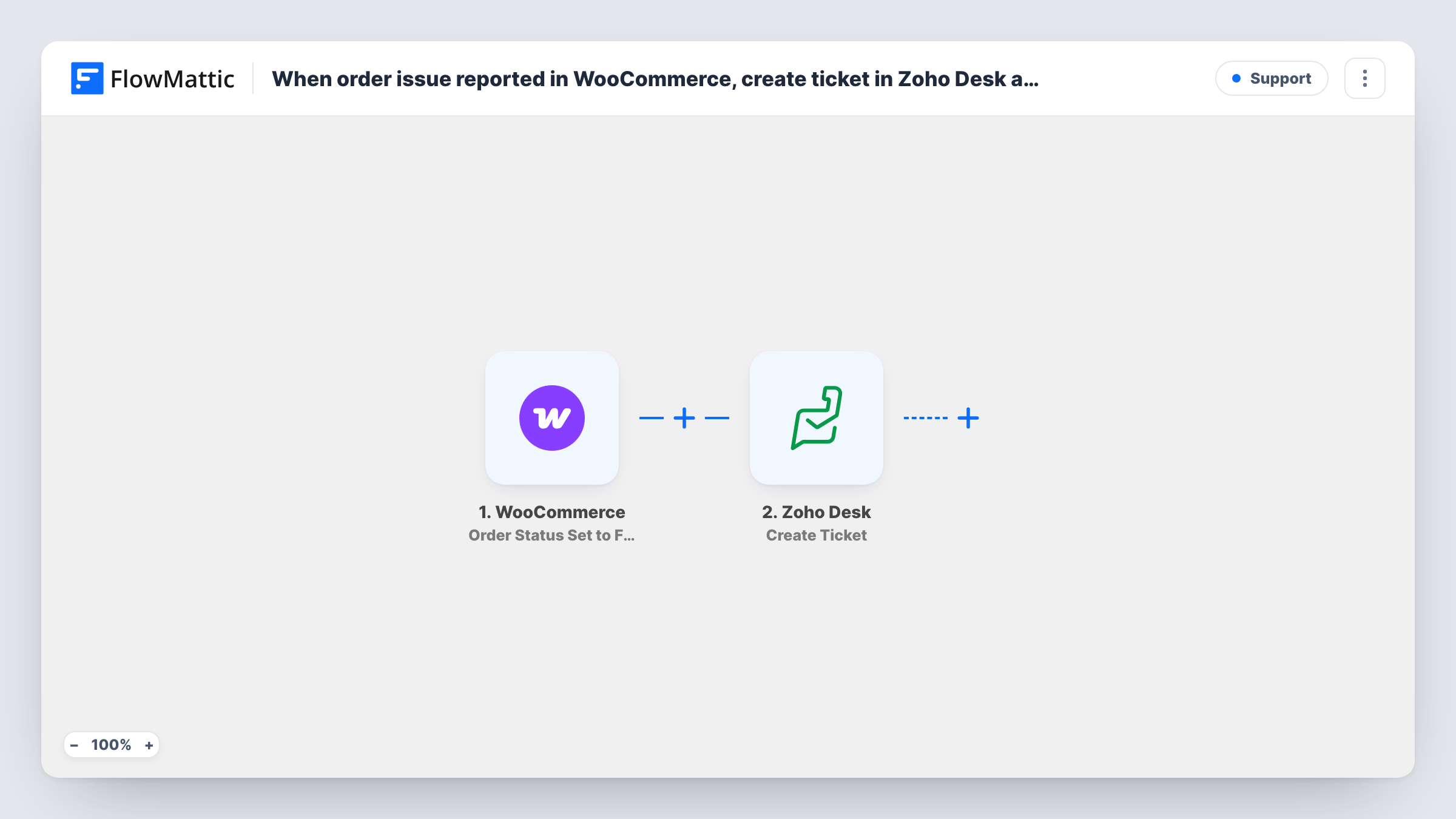
When a WooCommerce order is set to Failed, this workflow opens a Zoho Desk ticket with the order’s details, so your support team can contact the customer about the problem.
 WooCommerce
 Zoho Desk
2 steps Setup ~5 min Used on 3.3k sites Free to import
What this workflow does
A failed order means a customer tried to buy and something went wrong, usually at payment. Unless someone checks the orders screen, nobody follows up and the sale is simply lost. This workflow puts each failed order in front of your support team as a ticket.
Here, an "order issue" means one thing: the WooCommerce trigger fires when an order's status is set to Failed. Complaints a customer sends you, refunds and other statuses don't start it. FlowMattic then passes the order data to Zoho Desk, whose Create Ticket action opens a support ticket. You map the order number, the customer's name and email, the total and anything else useful into the ticket.
Every failed order creates one ticket. If the same order fails, is retried and fails again, it may produce a second ticket, so test it on your store. Task History shows what was sent to Zoho Desk on each run.
Card declines at checkout
A customer's card is declined and the order is marked Failed. Support gets a Zoho Desk ticket with the order number and email, and can send a link to pay another way.
Gateway outages
When a payment gateway has problems, several orders fail in a row. The tickets in Zoho Desk show the pattern quickly and give the team a list of customers to contact.
High-value orders that didn't go through
A shop selling equipment wants a person to call anyone whose large order failed. Each ticket holds the total and items so the agent knows what was at stake.
How this workflow runs
What happens at each step once the workflow is on, and what you need before you import it.
 WooCommerce Order Status Set to Failed
Fires when a WooCommerce order's status is set to Failed. The order's data, such as its number, total, items and billing details, is passed to Zoho Desk.
- Zoho Desk Create Ticket
Opens a new ticket in Zoho Desk. Map the order details and the customer's contact information into the ticket, then run a test to see which ticket fields the step asks for.
What you need
- FlowMatticCore
- WooCommerce PluginPlugin
- Zoho Desk AccountAccount
After importing, map your own data. To keep the template universal, not every step is pre-filled. Open each step in the builder and connect your accounts and fields (channels, lists, sheets, recipients) before you switch the workflow on.
Make it yours
Changes worth making after you import it.
- Add a Filter after the trigger that continues only when the order total is greater than a value you choose, so only larger failed orders become tickets.
- Put the order number in the ticket subject. Agents can then search Zoho Desk for it and spot a repeat failure on the same order.
- Want tickets for cancelled orders too? Import a second copy and switch its trigger to Order Status Set to Cancelled, so each status keeps its own ticket wording.
Questions about this workflow
Can customers report an order problem to start this workflow?
No. It only starts when WooCommerce sets an order to Failed. Messages a customer sends you, or other statuses such as On-hold or Refunded, don't trigger it.
Does the Zoho Desk ticket link to the customer?
Only through the fields you fill in. Put the billing email and name into the ticket so Zoho Desk can tie it to the right contact, and check the result on a test order.
Does this change the failed order in WooCommerce?
No. The workflow only reads the order and creates a ticket. The order stays Failed in WooCommerce until the customer or your team acts on it.
What if the order fails more than once?
The trigger may fire each time the status is set to Failed, which can create another ticket. Test with a retried order and check Task History.
More Support workflows
Other ready-to-import templates from the same category.







Import this workflow into your WordPress site
Download the JSON, import it from the Workflows screen and connect your accounts. Every run stays on your server, with no per-task fees.
30-day money-back guarantee Unlimited workflows and runs Self-hosted