

AI agent that follows up with each new webinar registrant
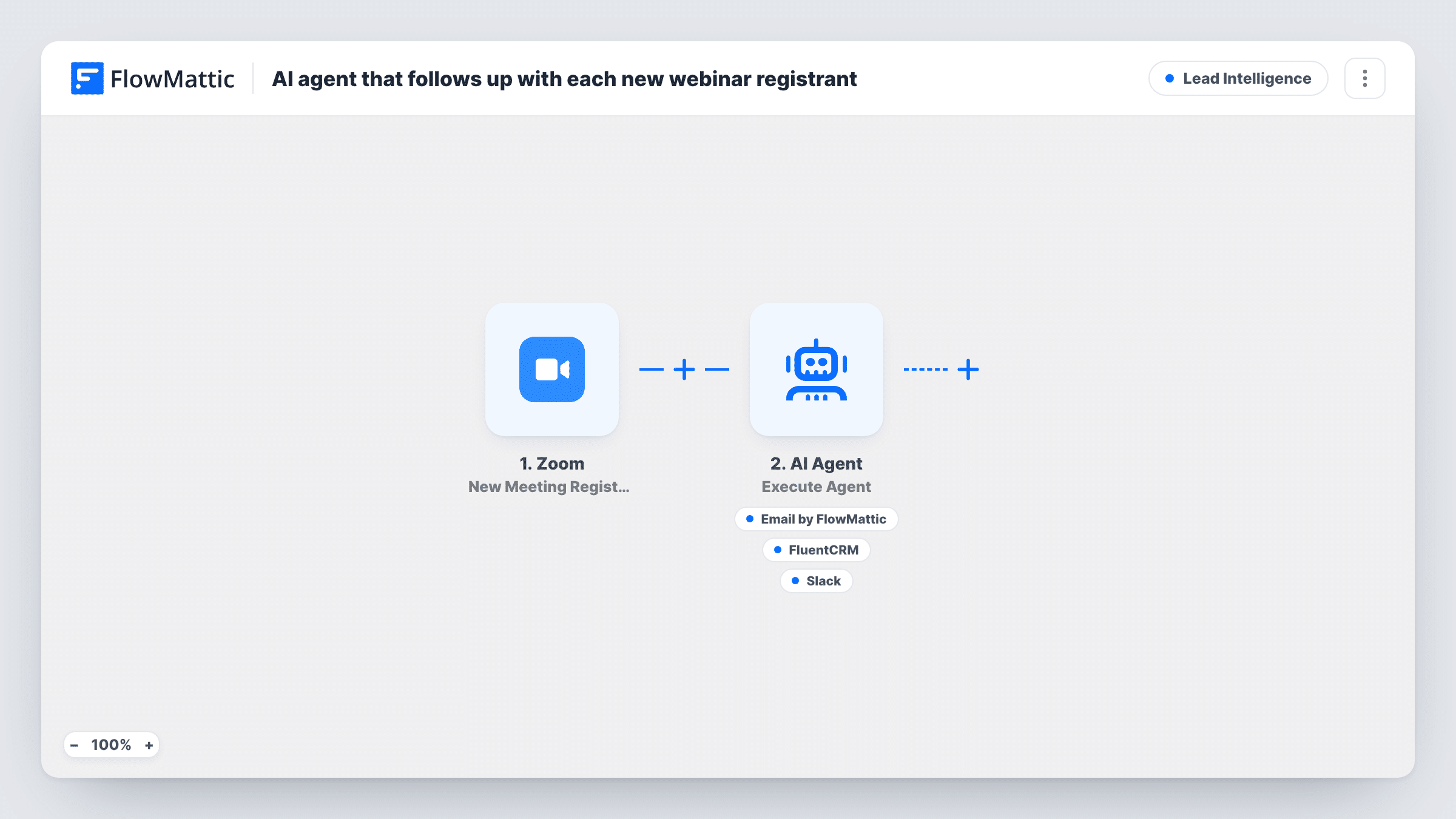
When someone registers for your Zoom webinar, an AI agent can email them a personal confirmation with prep notes, add them to FluentCRM, and flag notable registrants to the host in Slack.
 Zoom
Zoom
 AI Agent
 Email
Email
 FluentCRM
 Slack
Slack5 steps Setup ~8 min Used on 750 sites Growth Free to import
What this workflow does
Webinar registrants get a generic confirmation and then nothing until the day. A note that reflects who they are and what the session covers makes the registration feel noticed, and the host benefits from knowing when a senior buyer or a key partner signs up. This workflow gives that job to an AI agent.
The Zoom trigger starts a run as soon as someone signs up for one of your webinars. The AI Agent step, on OpenAI GPT-4o, receives the registrant's first and last name, job title and the webinar topic. It is told to confirm the registrant with tailored prep, add them to the CRM, and flag notable roles to the host.
It has three tools. The email tool always sends to the registrant's address, with the agent writing the subject and body. The FluentCRM tool creates or updates a contact by email with the first and last name from Zoom. The Slack tool posts a message the agent writes, for registrants it judges notable.
The agent decides which tools to use for each person, and it decides who counts as notable, so define that in the system prompt. Job title is only there if your registration form collects it. Zoom may still send its own confirmation, so treat this email as an extra, personal note.
Product webinars with buyers in the audience
A SaaS company runs monthly demos. When a registrant's title says head of operations or similar, the host sees a Slack message and can prepare examples for that role.
Prep notes for a training session
A trainer's webinar needs attendees to install a tool first. The agent's email includes that preparation, written around the session topic.
Growing the FluentCRM list from webinars
Every registrant can become a FluentCRM contact, so the marketing team can invite them to the next session from WordPress.
How this workflow runs
What happens at each step once the workflow is on, and what you need before you import it.
 Zoom New Webinar Registrant
Fires when a new registrant is added to a Zoom webinar. The registrant's name, email, job title and the webinar topic are passed to the agent and its tools.
- AI Agent Execute Agent
Runs an AI agent on OpenAI GPT-4o, told to confirm the registrant with tailored prep, add them to the CRM and flag notable roles to the host. It sees the name, job title and webinar topic.
 Email Send Email
Agent tool that emails the registrant's address through FlowMattic's Email module. The agent writes the subject and body, so describe the prep you want included in the system prompt.
- FluentCRM Create or Update Contact
Agent tool that creates a FluentCRM contact with the registrant's email, first name and last name, or updates the contact that already uses that email.
- Slack Send Channel Message
Agent tool that posts to a Slack channel to flag a notable registrant to the host. The agent writes the message; choose the host's channel when you configure it.
What you need
- FlowMatticCore
- Zoom AccountAccount
- AI ProviderAccount
- FluentCRM PluginPlugin
- Slack AccountAccount
After importing, map your own data. To keep the template universal, not every step is pre-filled. Open each step in the builder and connect your accounts and fields (channels, lists, sheets, recipients) before you switch the workflow on.
Make it yours
Changes worth making after you import it.
- List in the system prompt which job titles or companies count as notable for your host, so the agent's Slack flags match what you care about.
- Add the webinar's join details and any preparation steps to the system prompt or the Zoom topic, because the agent only knows what it is given.
- Ask for job title on your Zoom registration form if it isn't there already; without it the agent has little to tailor the email or judge notability on.
Questions about this workflow
Does this replace Zoom's own registration confirmation?
No. This workflow sends an extra email from your site. Zoom's own confirmation settings are separate, so check them in Zoom if you only want one message.
How does the AI agent decide who is notable?
From the job title and name it receives, using the instruction to flag notable roles. As imported that instruction is general, so add your own criteria to the prompt.
What if the registrant is already a FluentCRM contact?
The tool is Create or Update Contact, which matches on email, so the existing contact is updated rather than duplicated.
Is every Zoom registrant added to FluentCRM?
The agent is told to add each registrant, but it chooses when to call its tools. Check a few runs in Task History, and make that instruction firmer in the prompt if it ever leaves the CRM step out.
More Lead Intelligence workflows
Other ready-to-import templates from the same category.





Import this workflow into your WordPress site
Download the JSON, import it from the Workflows screen and connect your accounts. Every run stays on your server, with no per-task fees.
30-day money-back guarantee Unlimited workflows and runs Self-hosted