

Create ClickUp tasks from new Zoho Projects tasks
When a task is created in Zoho Projects, this workflow creates a matching task in ClickUp with the name, description and other details you map, so teams on both tools see the same work.
 Zoho Projects
 ClickUp
2 steps Setup ~5 min Used on 2.2k sites Productivity Free to import
What this workflow does
Agencies and partners often split across tools. Your client plans work in Zoho Projects, and your own team lives in ClickUp. Copying each new task by hand is slow, and tasks get missed. This workflow does the copy as soon as the task exists.
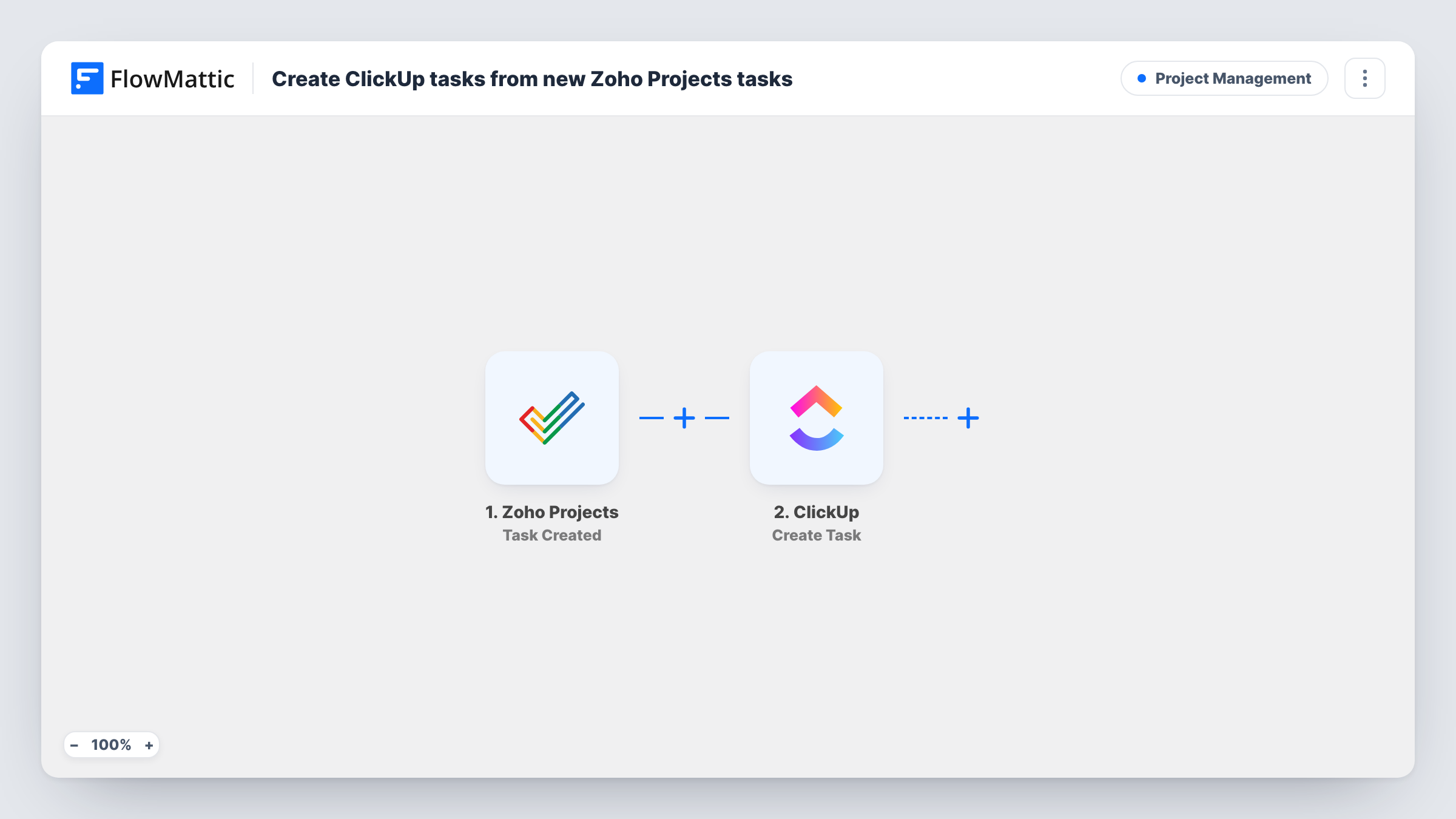
The Zoho Projects trigger is Task Created, which fires when a new task is created. FlowMattic sends the task's data on to ClickUp, where Create Task adds a task in the list you set up, using the fields you map, such as the task name, description and due date.
The link is one-way and happens once per task. Later edits, comments or status changes in Zoho Projects don't fire this trigger, so they don't reach ClickUp. Every copy is logged in Task History with the data from both apps.
Agency working for a Zoho Projects client
The client adds tasks in their Zoho Projects portal. Your designers pick them up in ClickUp without anyone retyping the brief.
Two departments, two tools
Operations plans in Zoho Projects and engineering works in ClickUp. New operations tasks that need engineering show up on their board.
Trying ClickUp before a switch
While you test ClickUp, every new Zoho Projects task is copied over, so the trial board holds real work.
How this workflow runs
What happens at each step once the workflow is on, and what you need before you import it.
 Zoho Projects Task Created
Fires when a new task is created in Zoho Projects. The task's details become available to map into ClickUp.
- ClickUp Create Task
Creates a new task in ClickUp from the Zoho Projects task. Map the name and any other details you want, choose where the task goes and connect your ClickUp account.
What you need
- FlowMatticCore
- Zoho Projects AccountAccount
- ClickUp AccountAccount
After importing, map your own data. To keep the template universal, not every step is pre-filled. Open each step in the builder and connect your accounts and fields (channels, lists, sheets, recipients) before you switch the workflow on.
Make it yours
Changes worth making after you import it.
- Put the Zoho Projects task link or ID in the ClickUp task description, so people can jump back to the original when they need more detail.
- If only some Zoho Projects tasks belong in ClickUp, add a Filter after the trigger that checks the project name or another task field.
- Create a test task in Zoho Projects after import so FlowMattic captures its fields, then map the due date and priority if your ClickUp list uses them.
Questions about this workflow
Do changes in Zoho Projects update the ClickUp task?
No. This template copies each task once, when it is created. Zoho Projects has a separate Task Updated trigger, but syncing edits would also need a step that finds the matching ClickUp task.
Can tasks from different Zoho Projects projects go to different ClickUp lists?
Not as imported. Swap the ClickUp step for a Router with one route per project name, each with its own Create Task step and list.
Are Zoho Projects subtasks or comments copied?
The trigger fires on task creation. Comments have their own trigger and aren't sent here. Check a test run to see which details the task data includes.
More Project Management workflows
Other ready-to-import templates from the same category.





Import this workflow into your WordPress site
Download the JSON, import it from the Workflows screen and connect your accounts. Every run stays on your server, with no per-task fees.
30-day money-back guarantee Unlimited workflows and runs Self-hosted