

When a call is completed in OpenPhone, add the call details to FlowMattic Tables
Every completed OpenPhone call is saved as a new record in a FlowMattic Tables table on your WordPress site, with the call details you choose to keep.
 OpenPhone
 Tables by FlowMattic
2 steps Setup ~5 min Used on 2.7k sites Free to import
What this workflow does
OpenPhone keeps your call history inside its own app, which is fine until you want to count calls per customer, sort them by number or join them with data you already hold on your site. This workflow copies each finished call into FlowMattic Tables, the database built into FlowMattic, so the log lives on your own WordPress install.
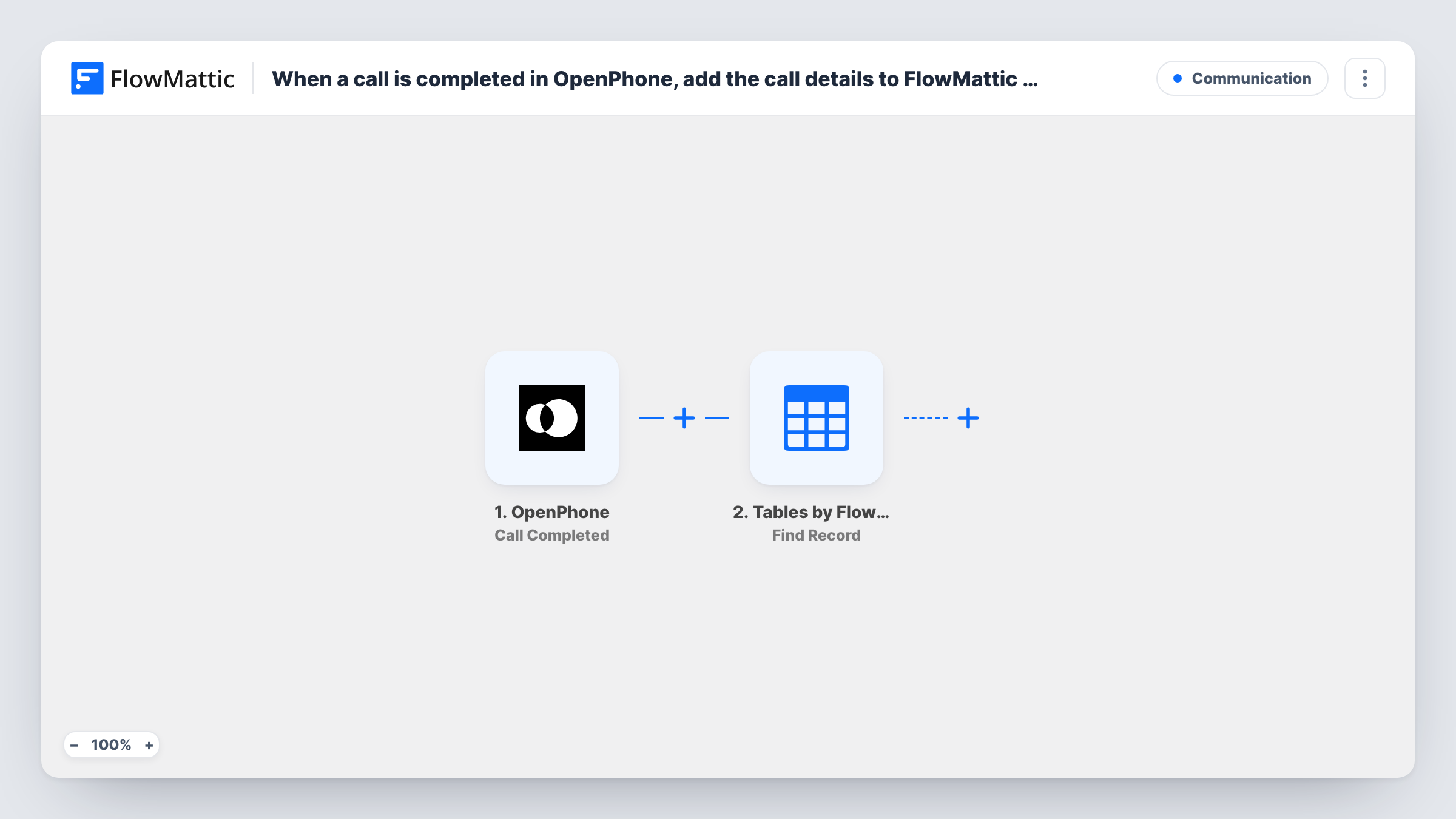
The OpenPhone Call Completed trigger fires when a call ends. The call's details from OpenPhone, typically who called whom and when, are passed to the next step. Run a test call to see exactly which fields arrive.
The FlowMattic Tables New Record step then adds one row to a table. Create the table first with the columns you want, then pick it in the step after import and map the call fields into those columns. The step ships unmapped, so nothing is saved until you do.
Each completed call adds its own row. Recordings, transcripts and call summaries aren't part of this flow: OpenPhone has separate events for those, which you can add in a second workflow. Task History shows each run and the record that was created.
Call log for a small sales team
A sales team using OpenPhone keeps every finished call in a FlowMattic table so the manager can sort by rep and day without logging into OpenPhone.
Support call history next to tickets
A support desk stores completed calls in FlowMattic Tables on the same site as its help desk, making it easy to look up when a customer last called.
Billable call tracking for consultants
A consultant logs each completed client call with its timing in a table, then reviews the rows at month end when preparing invoices.
How this workflow runs
What happens at each step once the workflow is on, and what you need before you import it.
 OpenPhone Call Completed
Fires when a call is completed in OpenPhone. The call's details are handed to the Tables step; check a test call to see which fields OpenPhone includes.
- Tables by FlowMattic New Record
Adds a row to the FlowMattic Tables table you pick. No columns are filled as imported, so create the table's columns first, then map the OpenPhone call fields into them.
What you need
- FlowMatticCore
- OpenPhone AccountAccount
After importing, map your own data. To keep the template universal, not every step is pre-filled. Open each step in the builder and connect your accounts and fields (channels, lists, sheets, recipients) before you switch the workflow on.
Make it yours
Changes worth making after you import it.
- Set up the table's columns before you import, for example caller, recipient, direction, duration and start time, so mapping the New Record step takes a minute.
- Store the OpenPhone call ID in a column. A second workflow on Call Summary Completed can then use Tables' Find Record to locate that row by call ID and Update Record to add the summary.
- If the trigger data includes a duration, put a Filter between the OpenPhone trigger and the Tables step that continues only above a length you choose, to leave very short calls out.
- Add a date column and map the call's start time into it, so you can sort and group the log by day or week.
Questions about this workflow
Do I need a separate database for the OpenPhone call log?
No. FlowMattic Tables is built into FlowMattic and stores the rows on your WordPress site. You only need an OpenPhone account to connect the trigger.
Are call recordings or transcripts saved in the table?
Not by this workflow. Call Completed fires when the call ends; OpenPhone sends recordings, transcripts and summaries as separate events, which FlowMattic offers as their own triggers.
Which OpenPhone call details end up in FlowMattic Tables?
Only the fields you map into the New Record step. Make a test call, look at the trigger data in Task History, and map the ones that match your table's columns.
Are missed calls logged too?
That depends on what OpenPhone counts as a completed call. Place a test call you don't answer and see whether a run appears in Task History.
More Communication workflows
Other ready-to-import templates from the same category.






Import this workflow into your WordPress site
Download the JSON, import it from the Workflows screen and connect your accounts. Every run stays on your server, with no per-task fees.
30-day money-back guarantee Unlimited workflows and runs Self-hosted