

When a new Lemcal meeting is booked, add it to Google Calendar and create a follow-up task in ClickUp
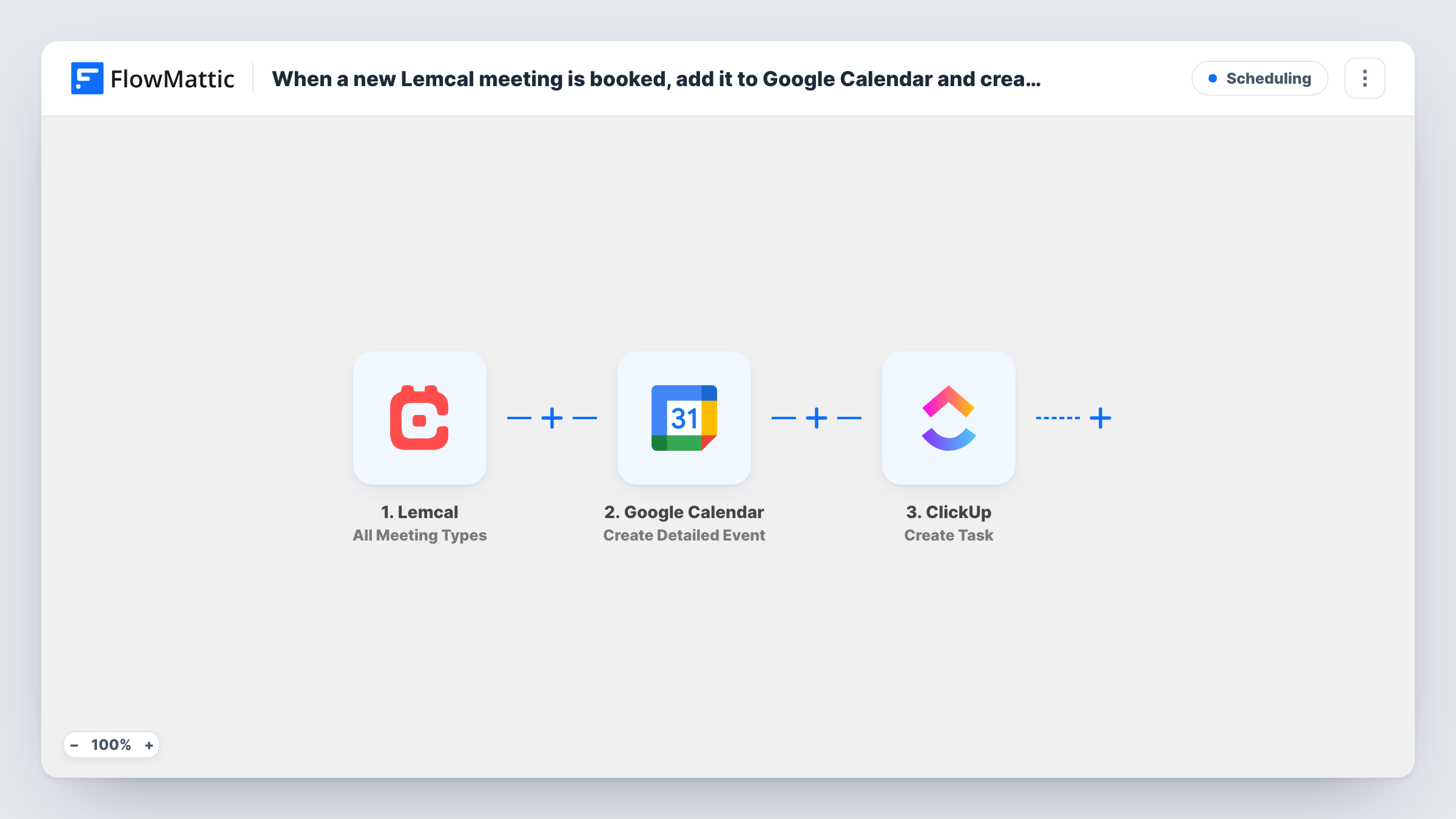
When someone books a meeting through any of your Lemcal meeting types, FlowMattic puts it on Google Calendar and opens a ClickUp task for the follow-up, so the meeting and the work after it are both tracked.
 Lemcal
 Google Calendar
 ClickUp
3 steps Setup ~5 min Used on 3.5k sites Free to import
What this workflow does
A booked meeting creates two jobs: holding the time in your calendar and doing whatever comes after the call, such as sending notes or a proposal. When those live in different tools, one of them gets forgotten. This workflow handles both from a single Lemcal booking.
The Lemcal trigger, All Meeting Types, starts a run for meetings booked across every one of your meeting types. FlowMattic then uses Create Detailed Event in Google Calendar to add the meeting, with the start and end time and guest details you map. Next, ClickUp gets a new task through Create Task, in the list you pick, named and described with values from the booking.
Both actions run for every booking, since nothing filters them. Task History shows what Google Calendar and ClickUp returned for every booking. Later changes to the meeting in Lemcal aren't copied to either app.
Sending proposals after sales calls
A prospect books a demo in Lemcal. The demo goes on your calendar, and a ClickUp task named after the prospect reminds you to send the proposal once the call ends.
Onboarding calls for new clients
Each onboarding session booked in Lemcal opens a ClickUp task in the onboarding list, where the account manager tracks setup work for that client.
Coaching sessions with session notes
Coaches get the session in Google Calendar and a ClickUp task to write and share notes with the client afterwards.
How this workflow runs
What happens at each step once the workflow is on, and what you need before you import it.
 Lemcal All Meeting Types
Runs when a meeting is booked under any of your Lemcal meeting types. The meeting data, such as time, guest and type, feeds the next two steps.
- Google Calendar Create Detailed Event
Adds the meeting to the Google Calendar you choose as a detailed event. Map the start and end time, put the guest's name in the title, and connect your Google account.
- ClickUp Create Task
Opens a follow-up task in ClickUp in the list you pick. Use values from the Lemcal booking in the task name and description, such as the guest and meeting type, and connect your ClickUp account.
What you need
- FlowMatticCore
- Lemcal AccountAccount
- Google Calendar AccountAccount
- ClickUp AccountAccount
After importing, map your own data. To keep the template universal, not every step is pre-filled. Open each step in the builder and connect your accounts and fields (channels, lists, sheets, recipients) before you switch the workflow on.
Make it yours
Changes worth making after you import it.
- Want follow-up tasks for sales meetings only? Swap the trigger for Lemcal's A Specific Meeting Type, and the calendar and ClickUp steps then run for that type alone.
- Map the meeting's end time into the ClickUp task's due date if the Create Task step offers one, so the follow-up is due straight after the call.
- Book a test meeting after import so both actions get real Lemcal values to map, then check the event time and the new task before turning the workflow on.
Questions about this workflow
Does the ClickUp task link to the Google Calendar event?
Not automatically. You can map values returned by the Google Calendar step into the task description if a test run shows an event link among them.
What happens in ClickUp and Google Calendar if a Lemcal meeting is cancelled?
Nothing changes. The workflow reacts to bookings only, so remove the event and close the task yourself.
Can I create the ClickUp task without the calendar event?
Yes. Delete the Google Calendar step after import, and the booking goes straight to ClickUp.
More Scheduling workflows
Other ready-to-import templates from the same category.






Import this workflow into your WordPress site
Download the JSON, import it from the Workflows screen and connect your accounts. Every run stays on your server, with no per-task fees.
30-day money-back guarantee Unlimited workflows and runs Self-hosted