

When new invoice created in Zoho Inventory, email to customer via Email SMTP, record in Google Sheets for tracking, and create payment reminder in ActiveCampaign
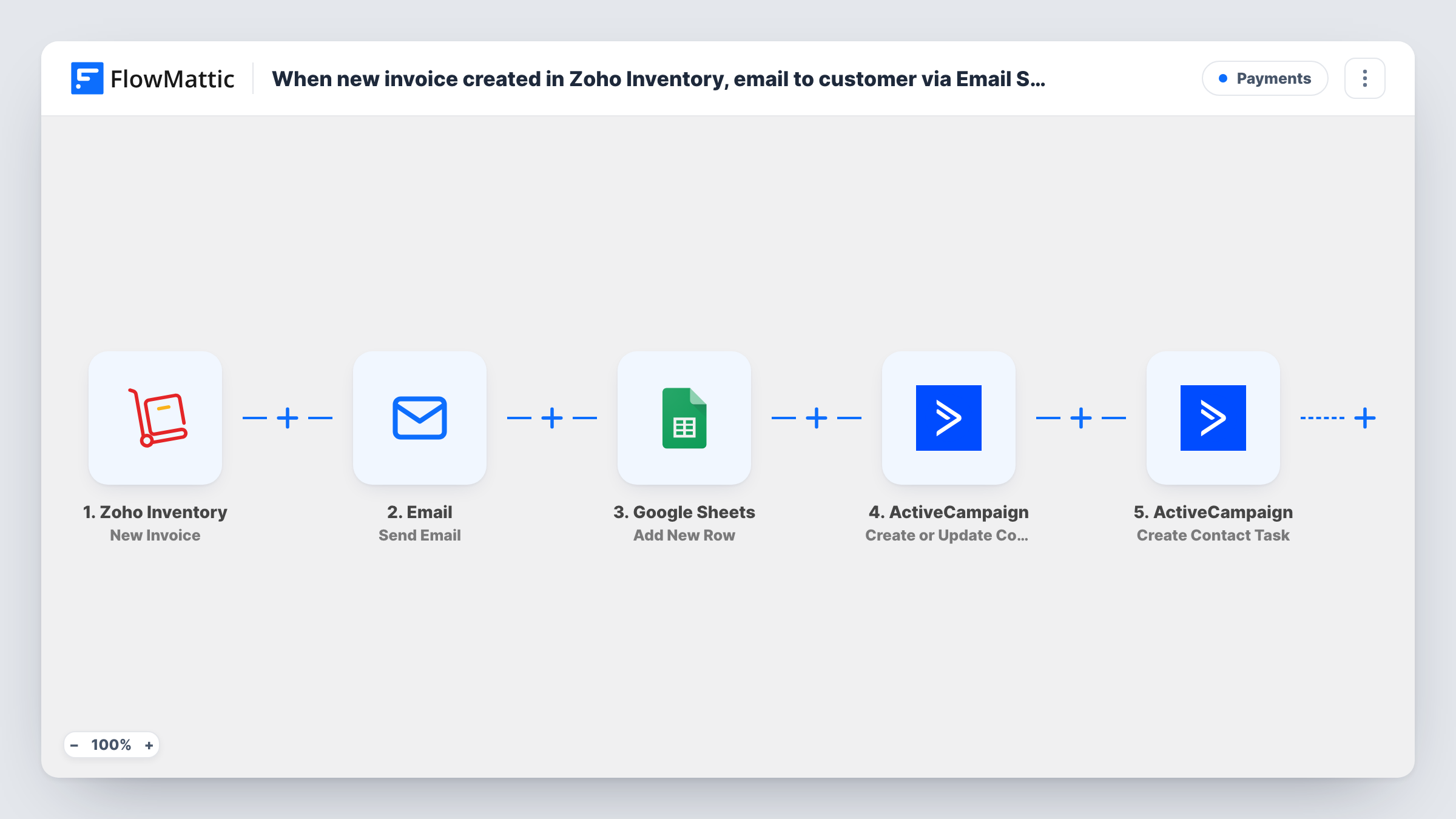
When an invoice is created in Zoho Inventory, FlowMattic emails the customer through your SMTP or WordPress mail, logs the invoice in Google Sheets, and adds a payment reminder task to the customer’s ActiveCampaign contact.
 Zoho Inventory
 Email
Email
 Google Sheets
 ActiveCampaign
5 steps Setup ~8 min Used on 2.5k sites Free to import
What this workflow does
Raising an invoice is rarely the last step: the customer needs to hear about it, finance wants a record, and someone has to chase payment later. This workflow starts all three from the moment the invoice exists in Zoho Inventory, so the follow-up is set before anyone forgets it.
The Zoho Inventory New Invoice trigger fires when an invoice is created and passes its details on. The Email step then sends a message through FlowMattic's Email module, using WordPress mail or the SMTP account you set up. The template doesn't attach Zoho's invoice PDF; you write the email and map invoice details such as the number, total and due date into it. Next, a Google Sheets step adds a row for the invoice to your tracking sheet.
Two ActiveCampaign steps finish the run. Create or Update Contact adds the customer, or updates them if they already exist, and Create Contact Task puts a payment reminder on that contact, mapped to the contact step 4 returned.
All four action steps ship unmapped. After import, map the customer's email and name, the sheet columns and the task text. Create a test invoice and check Task History to confirm the customer's email arrives in the trigger data.
Wholesale invoices with a follow-up
A distributor invoices trade customers from Zoho Inventory and wants a sales rep to call about payment, so each invoice adds a reminder task in ActiveCampaign.
Receivables sheet for the accountant
A small manufacturer keeps a Google Sheet of every invoice with its total and due date, which the bookkeeper reconciles at month end.
Branded invoice notices
A shop sends its own wording from its company mailbox over SMTP, telling customers the invoice number, amount and when it is due.
How this workflow runs
What happens at each step once the workflow is on, and what you need before you import it.
 Zoho Inventory New Invoice
Fires when an invoice is created in Zoho Inventory. The invoice's number, customer, amounts and dates become available to map into the email, the sheet and ActiveCampaign.
 Email Send Email
Sends an email through FlowMattic's Email module, with WordPress mail or your SMTP account. The step ships unmapped: set the recipient to the customer's email, then write the subject and body with invoice details.
- Google Sheets Add New Row
Adds a row for the invoice to your tracking spreadsheet. Pick the sheet and map the invoice number, customer, total and due date into your columns.
- ActiveCampaign Create or Update Contact
Creates the customer as an ActiveCampaign contact, or updates the existing contact. Map the customer's email, and their name if you want it on the contact.
- ActiveCampaign Create Contact Task
Adds a task to that ActiveCampaign contact as a payment reminder. Map the contact from step 4 and write the task, for example "Check payment for invoice" plus the number.
What you need
- FlowMatticCore
- Zoho Inventory AccountAccount
- Google Sheets AccountAccount
- ActiveCampaign AccountAccount
After importing, map your own data. To keep the template universal, not every step is pre-filled. Open each step in the builder and connect your accounts and fields (channels, lists, sheets, recipients) before you switch the workflow on.
Make it yours
Changes worth making after you import it.
- Map the invoice due date into the ActiveCampaign task's due date if the step offers it, so the reminder falls when payment is actually due.
- Add a status column to the Google Sheet that you update by hand when payment arrives, so the sheet doubles as an aging report.
- Use a second copy of this workflow on Zoho Inventory's New Customer Payment trigger to log payments in the same spreadsheet, so invoices and payments sit side by side.
Questions about this workflow
Does the email include the Zoho Inventory invoice PDF?
No. The Email step sends the text you write, with invoice details mapped in. It can only attach files stored on your WordPress site, and Zoho's PDF isn't one of them, so share the invoice link if your trigger data includes one.
Do I need an SMTP provider for the customer email?
Not necessarily. FlowMattic's Email module can send with WordPress's built-in mail or through an SMTP account you add, such as your company mailbox's SMTP details.
What happens if the customer is already in ActiveCampaign?
Create or Update Contact updates the existing contact instead of adding a second one, and the reminder task is added to that contact.
Do draft invoices in Zoho Inventory start the workflow?
The trigger fires when an invoice is created. Create a draft invoice as a test and check Task History, so you know whether drafts reach your customers before you turn it on.
More Payments workflows
Other ready-to-import templates from the same category.






Import this workflow into your WordPress site
Download the JSON, import it from the Workflows screen and connect your accounts. Every run stays on your server, with no per-task fees.
30-day money-back guarantee Unlimited workflows and runs Self-hosted