How to Set Up FlowMattic Cloud: Webhooks That Retry, Schedules on Time
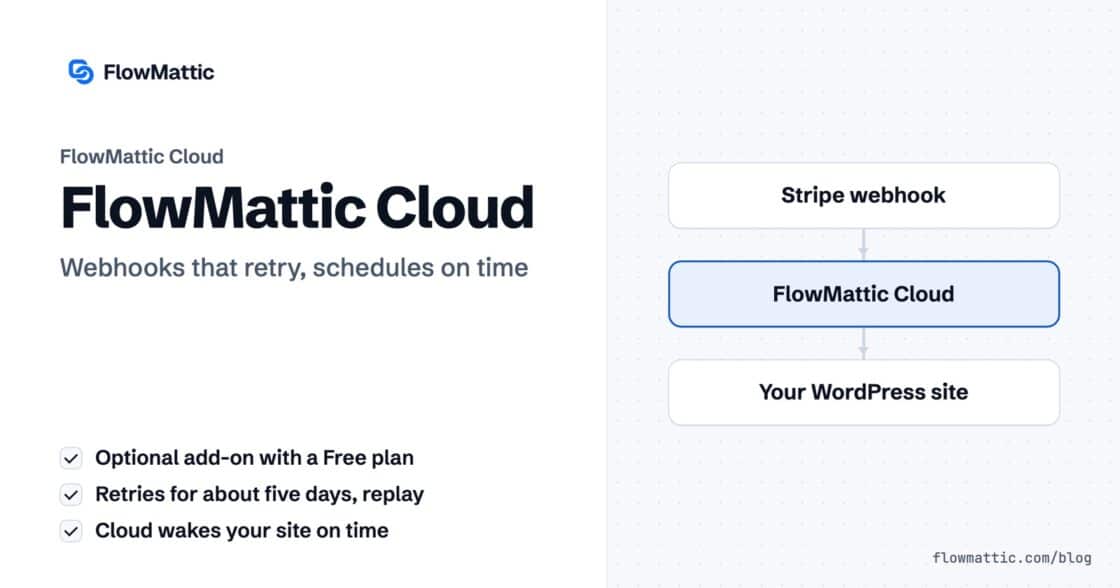
FlowMattic Cloud is an optional add-on with a Free plan: webhooks that retry for about five days with replay, schedules woken on…


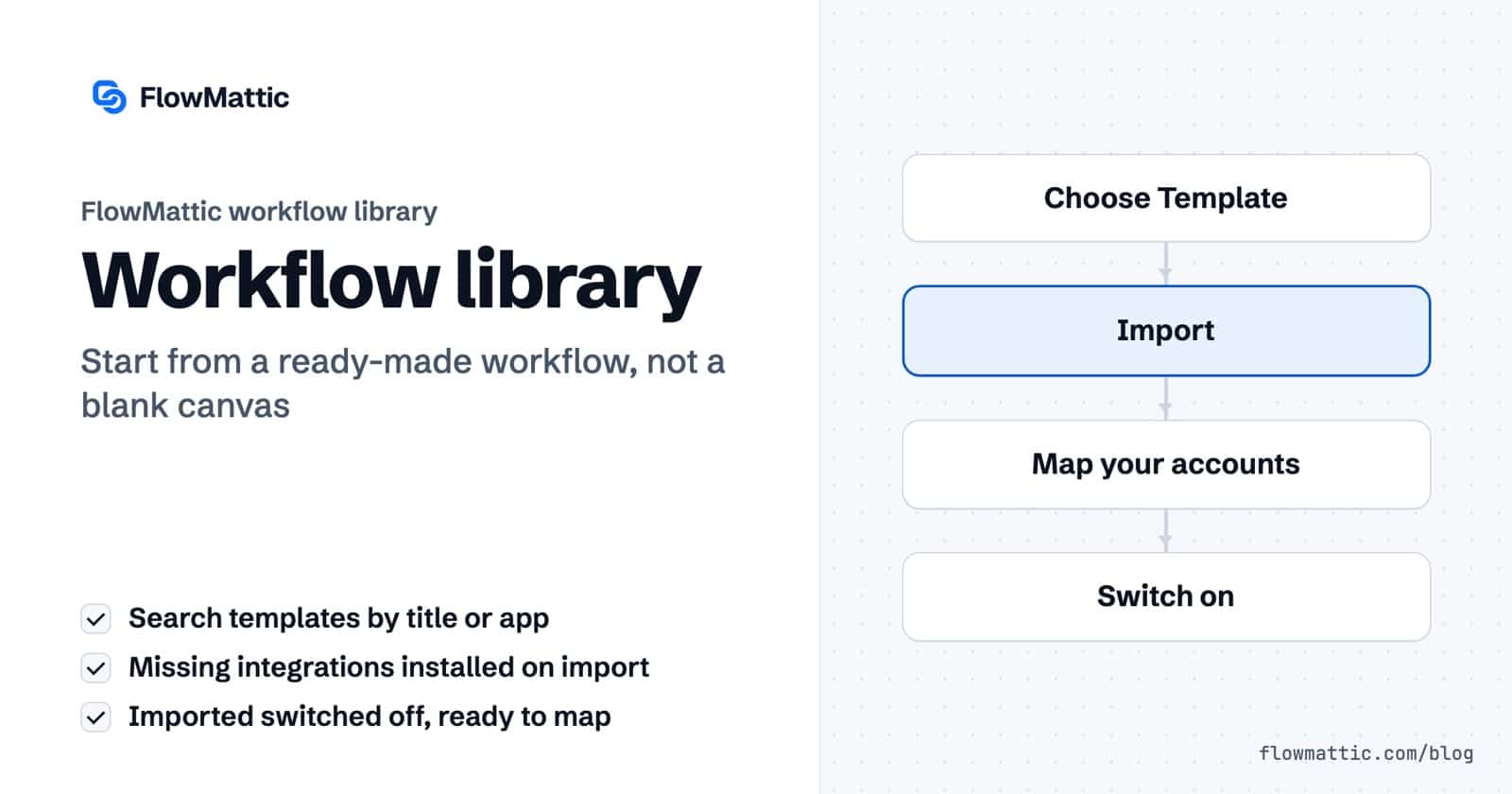
WordPress automation templates save you from starting on a blank canvas. FlowMattic, the automation plugin for WordPress, has a workflow library of ready-made workflows built by the FlowMattic team: you pick one, it is imported into your site with any integrations it needs, and you connect your own accounts before switching it on.
You can browse the library on flowmattic.com or straight from the Workflows screen in wp-admin. This guide covers both routes, what happens to a workflow during import, the other ways to bring workflows in (a JSON file or a shared link), and how stores, agencies and teams use templates to get to a working automation faster.
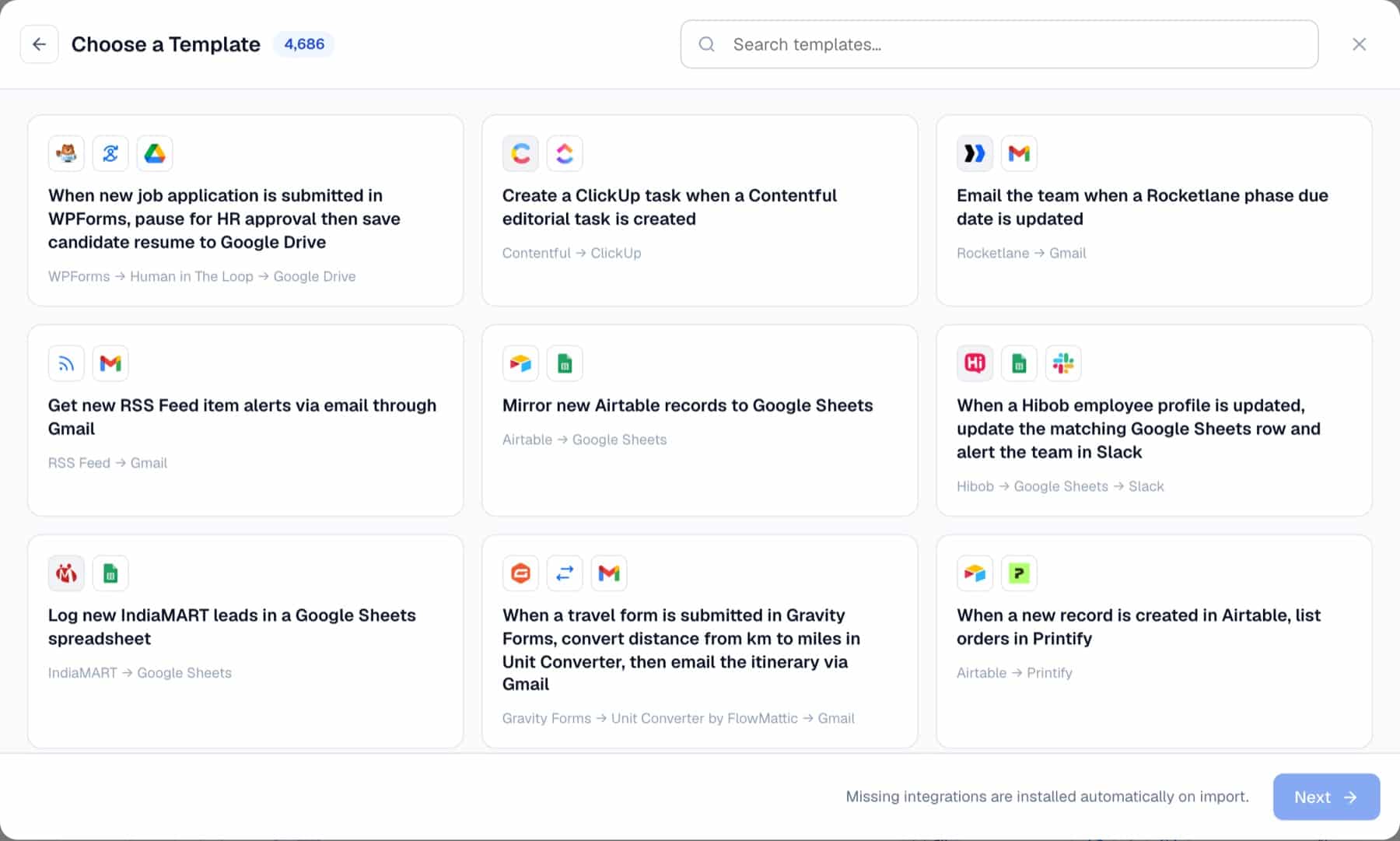
The workflow library is a collection of importable workflow templates. Each template is a complete workflow, trigger and steps, saved as JSON, with a page that explains it. It lives in two places:
Every imported template runs on your own server like any workflow you build, with no per-task fees, and every step can be changed in the builder.
On the Workflows screen, the Import workflow button opens the Import Workflow dialog. Drop a file into Upload Workflow File (JSON), such as one you downloaded from a template page or exported from another site, or paste a URL into Import from Shared Link. Missing integrations are installed during import either way.
Shared links come from Share Workflow on another site. Under Share Link Settings the sender can make it a Temporary link that expires after 1 hour, 6 hours, 1 day, 3 days, 7 days, 30 days or a custom date, then press Generate Share Link.
| What | What happens |
|---|---|
| Status | The workflow is saved switched off, so nothing runs until you turn it on. |
| Name | From the template picker: the name you typed, or the template title. From a JSON file: the original name plus “_IMPORTED”. From a shared link: plus “_SHARED”. |
| Integrations | Apps the workflow uses that are not installed are installed automatically. Any that fail are listed so you can install them from the Integrations page. |
| Webhook URLs | A custom webhook slug that is already taken on your site is dropped, and the trigger gets a new URL. |
| Cloud delivery | Webhook triggers are set to deliver directly to your site. Switch to FlowMattic Cloud yourself if you want it. |
| Your data | Not every step is pre-filled. Connect your accounts and map your own channels, lists, sheets and recipients. |
The template list inside the plugin needs a registered license key, and it is cached on your site for 24 hours. A template added to the library today may take up to a day to appear in the picker.
A new WooCommerce store owner searches the picker for “WooCommerce”, imports a template that matches what they want, and only has to connect accounts and test before going live.
Flow: Choose Template → search “WooCommerce” → Next → connect accounts → test → switch on
An agency builds its lead-handling workflow once, exports it, and imports the JSON on each new client site. Each copy arrives switched off, ready for that client’s CRM and inbox.
Flow: Export Workflow on the agency site → Upload Workflow File (JSON) on the client site → map the client’s accounts → switch on
Priya Sharma wants Amelia Okafor to review a support triage workflow on a staging site. She shares a temporary link that expires in one day, and Amelia imports it from the link.
Flow: Share Workflow (Temporary link, 1 Day) → Import from Shared Link → review in the builder
A marketing team reads the template page on flowmattic.com first: the “What you need” list shows which plugins and app accounts the workflow expects, so nothing is missing on import day.
Flow: Workflow library page → What you need → Download this workflow → Import Workflow
Someone new to routers and iterators imports a template that uses them and opens each step to see how it is configured, then changes one thing at a time.
Flow: Choose Template → open each step in the builder → edit → test
When the search finds nothing close, the same New Workflow dialog offers Generate with AI: describe the automation and Jaadu builds a draft on the canvas for you to adjust.
Flow: New Workflow → Generate with AI → describe the automation → review the draft → test
Templates can be downloaded from the website, and importing them from inside the plugin needs a registered FlowMattic license key. Running an imported workflow has no per-task fee, like any other workflow on your site.
On the Workflows screen, open Import Workflow and drop the file into Upload Workflow File (JSON), or browse for it. The workflow is created switched off with “_IMPORTED” after its name, and any missing integrations are installed.
No. Every import is saved switched off. Connect your accounts, fill in the steps that need your own data, test it, and then turn it on.
Yes. Export a workflow as JSON, or use Share Workflow to generate a link, optionally temporary. The other site imports it from Import Workflow.
Want to see the library in action? Try FlowMattic and import your first template.
FlowMattic Cloud is an optional add-on with a Free plan: webhooks that retry for about five days with replay, schedules woken on…
Task History records every run and every step, with inputs and responses, and lets you re-execute a run, a single step or…
DNS / Domain Tools adds seven checks to any workflow: DNS, reverse DNS, MX, email domain, SSL certificate, HTTP headers and open…