

Add Calendly bookings to FluentCRM and email a prep note before the call
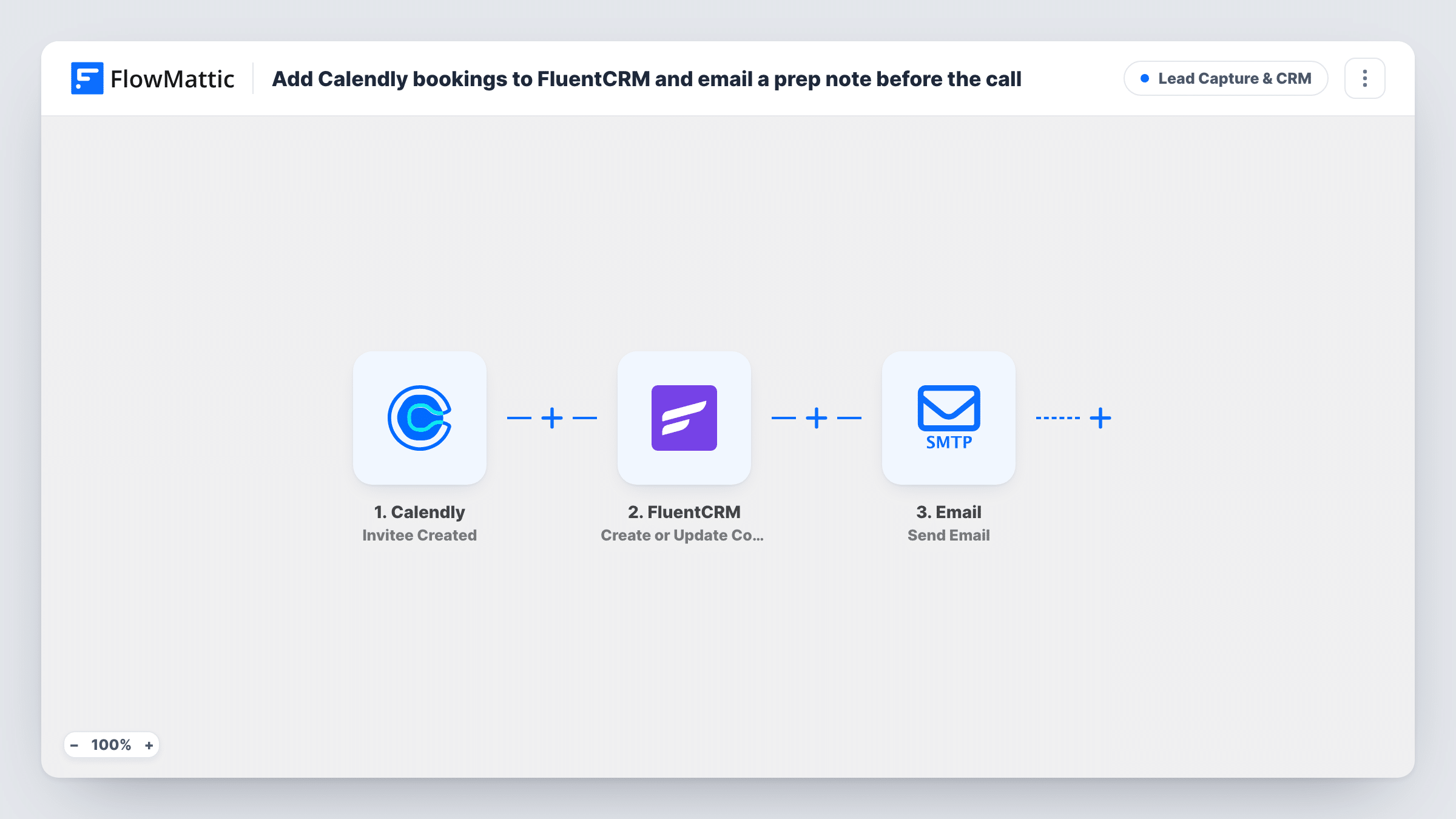
Whenever someone books through Calendly, this workflow adds or updates them as a FluentCRM contact and sends them an email right away asking them to bring their goals and questions to the meeting.
 Calendly
 FluentCRM
 Email
3 steps Setup ~5 min Used on 3.0k sites Growth Free to import
What this workflow does
A booked call goes better when the person arrives prepared, and a booking is also a good moment to add them to your email list. Doing both by hand after every booking is easy to forget. This workflow handles both as soon as the booking is made.
The Calendly trigger runs when an invitee is created, which happens when someone books one of your event types. FlowMattic sends the invitee's email and name to FluentCRM, which creates a contact or updates the one that already has that email. Next, the Email step writes to the invitee. The subject says you are looking forward to the meeting, using the Calendly event name, and the body thanks them and asks them to come with their goals and questions.
The prep email goes out straight after booking, not at a set time before the call. If you want it closer to the meeting, add a Delay. The full Calendly name goes into the FluentCRM first name, and the last name is left blank.
Discovery calls for consultants
Prospects who book a discovery call join your FluentCRM list and get a note asking them to think about their goals before you speak.
Coaching sessions
Each new client booking becomes a FluentCRM contact, and the email asks them to bring the questions they want to work on.
Product demos
People booking a demo are added to your CRM for follow-up, and the email tells them to prepare the questions they want answered on the call.
How this workflow runs
What happens at each step once the workflow is on, and what you need before you import it.
 Calendly Invitee Created
Fires when an invitee is created in Calendly, meaning someone has booked a meeting. The invitee's name, email and the event name are passed on.
- FluentCRM Create or Update Contact
Creates or updates a FluentCRM contact from the invitee's email. The full Calendly name fills the first name and the last name is left empty.
 Email Send Email
Emails the invitee with a subject naming the Calendly event and a short note asking them to bring their goals and questions. Edit the wording to match your meetings.
What you need
- FlowMatticCore
- Calendly AccountAccount
- FluentCRM PluginPlugin
After importing, map your own data. To keep the template universal, not every step is pre-filled. Open each step in the builder and connect your accounts and fields (channels, lists, sheets, recipients) before you switch the workflow on.
Make it yours
Changes worth making after you import it.
- Put a Delay before the email step if you want the note to arrive closer to the meeting rather than at the moment of booking.
- Add a tag in FluentCRM for Calendly bookings, if the contact step offers one in a test run, so you can tell these contacts apart from form sign-ups.
- Add a Filter after the trigger on the event name, so only certain meeting types, such as sales calls, get the prep email.
Questions about this workflow
Is the Calendly prep email sent at a set time before the meeting?
No. It goes out right after the booking. Add a Delay before the email step if you want it to arrive later.
What if the invitee is already a FluentCRM contact?
The step is Create or Update Contact, so the existing contact with that email is updated rather than duplicated.
Does Calendly still send its own confirmation?
Yes. This workflow does not change Calendly's own notifications. The prep note is an extra email from you.
What happens when a Calendly booking is cancelled?
Nothing. The workflow only reacts to new invitees, so the FluentCRM contact stays and no cancellation email is sent.
More Lead Capture & CRM workflows
Other ready-to-import templates from the same category.




Import this workflow into your WordPress site
Download the JSON, import it from the Workflows screen and connect your accounts. Every run stays on your server, with no per-task fees.
30-day money-back guarantee Unlimited workflows and runs Self-hosted